
Stop Crashing and Start Cooking with vLLM on AMD and Lemonade Server
I used to wonder why “curiosity killed the cat,” but now I know that those curious cats probably forgot to eat while running experiments with AI on their local machine. I can relate. This particular journey started when one of my company’s AI developers asked me how my local AI machine would handle processing 500,000 medium-complexity data classifications. Did I technically need to answer his question? No. But that darn curious cat got me and suddenly it was 1am.
But you, probably feline-adjacent reader, get to inherit the painful GPU memory fix I had to discover and see my sequential vs simultaneous throughput tests. Reminder that my specific hardware is an AMD Strix Halo AI Max+ 395 with 128GB of unified memory and 96GB dedicated to VRAM.
Who Is This For?
Anyone with a ROCm-capable AMD machine running Lemonade Server who cares about throughput for data processing or multi-user chat setups. If you have NVIDIA hardware or if you just care about single-user chat, this is only relevant for the curious cats.
TL;DR / Executive Summary
- Use Lemonade Server v10.8.0+ to get a functioning vLLM back-end
- The default GPU memory utilization setting for vLLM in Lemonade Server crashed my system. Use –gpu-memory-utilization 0.78
- Use a smaller ctx_size to start your experimentation journey
- Set max-num-seq for vLLM in Lemonade Server to avoid overwhelming your machine. I had the best results with –max-num-seq 10
- Drum roll please….. I achieved 2.5x to 3.13x speedup on various simultaneous-processing tasks
Demo code and benchmarks available on GitHub.
Why vLLM?
Reminder that Lemonade Server is AMD’s open-source local AI serving layer specifically targeted at AMD hardware. Lemonade Server only recently added experimental support for vLLM as a back-end. The officially-supported back-end is llama.cpp, which is great for single-user and sequential tasks.
For the uninitiated, vLLM tries to keep the GPU busy by grouping incoming requests, doing some paging and attention tricks with the cache, and interleaving the way responses are generated. This can make a single request slower but multiple requests much faster.
Think of vLLM as a very organized short-order cook keeping the line moving, whereas llama.cpp is a well-trained butler who serves one guest at a time before snobbily evaluating the next guest for worthiness.
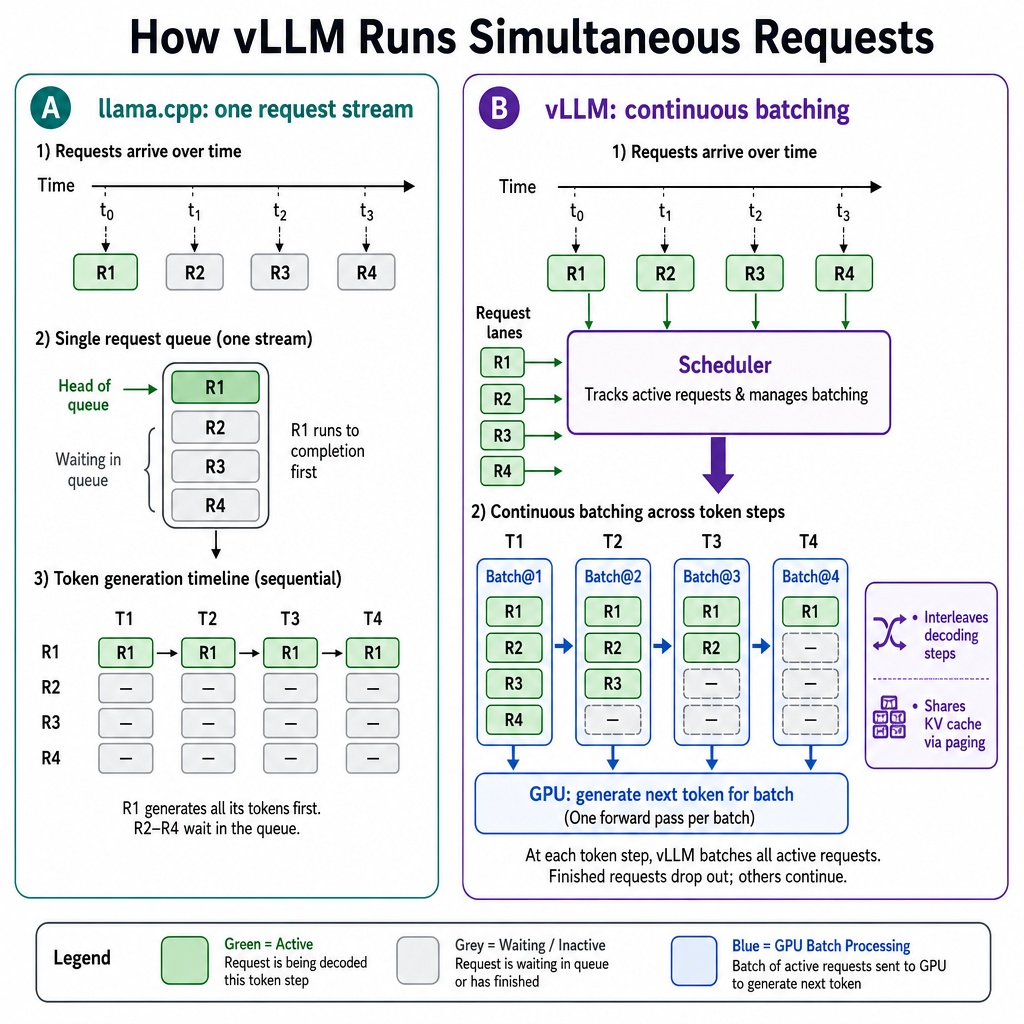
So when multiple requests come in quickly and keep coming (like with the data processing example that started this curious quest), the overall speedup should be quite noticeable. Unless it melts my GPU, which would be unfortunate.
Installing vLLM for Lemonade Server
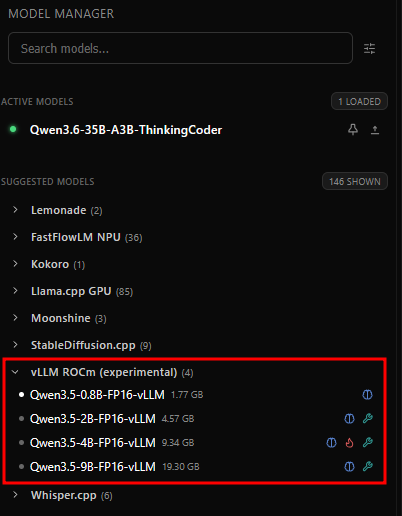
Since vLLM support is new and experimental, you will first want to update Lemonade Server to the latest version. This is important, so for the impatient people be aware that this isn’t a step you can skip.
If you’re a UI fan, you can see the vLLM ROCm (experimental) section and download a model. I recommend starting with Qwen 3.5 0.8B and then you can try bigger models from there once you validate your setup.
For the command-line junkies among us, just pull the model from Lemonade CLI.
lemonade pull Qwen3.5-0.8B-FP16-vLLM
Both approaches automatically download and configure the vLLM back-end without matching up Python environments and ROCm library versions. I was impressed at the ease of integration. Momentarily.
This should be easy, right? Right?!?!
Unfortunately, my brief period of euphoria crashed out just like the vLLM did. After rummaging through the logs like a racoon, I discovered that it was allocating all of my voluminous VRAM by default.
I was graced with this annoying little blurb:
ValueError: Free memory on device cuda:0 (76.45/96.0 GiB) on startup
is less than desired GPU memory utilization (0.92, 88.32 GiB).
The default gpu_memory_utilization=0.92 leaves no headroom, so vLLM refuses to start. We just need to override that value and set it to a safer value. But this robbed Lemonade of their clean sheet turnkey integration experience, and if my cat had been less curious I might have just let sleeping dogs lie.
The fix: Update vLLM Model Settings
We’re going to have to fiddle with the per-model settings to get this done. It’s not hard, but Lemonade has a slightly quirky approach to this. At least for “hand-editing JSON files with partial documentation” definitions of quirky.
Lemonade manages per-model settings by splitting them across two config files under the service cache directory (/var/lib/lemonade/.cache/lemonade/).
user_models.jsonis the registry that defines which models exist (their checkpoints, labels, and whichrecipethey use)recipe_options.jsonis the per-model runtime override that controls how the chosen back-end runs the model
When you edit recipe_options.json, the keys must use the canonical ID format (user.NAME, extra.NAME, or builtin.NAME), and the values typically include things like ctx_size plus back-end-specific argument strings (for example llamacpp_args for llama.cpp or vllm_args for vLLM).
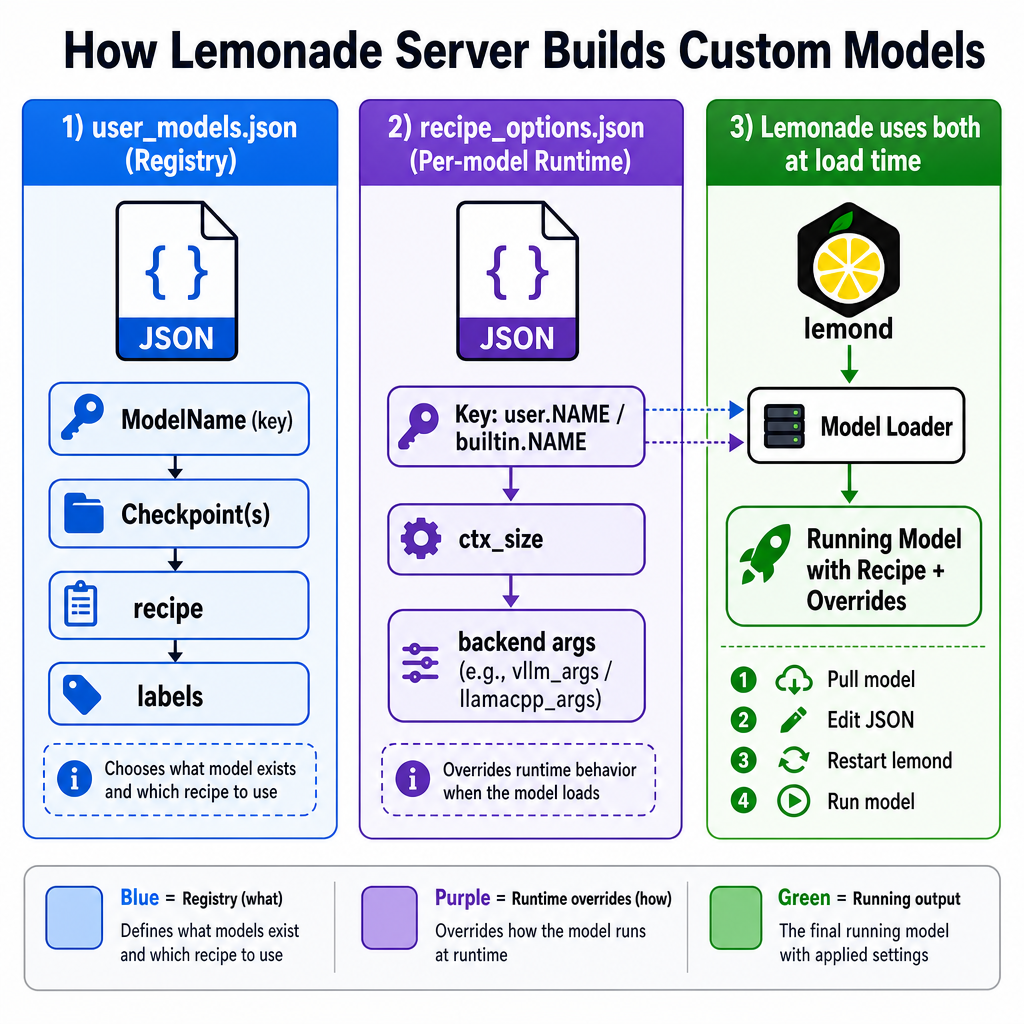
Since we just want to change the back-end settings, we only need to edit recipe_options.json. These are built-in models, you won’t see them in the recipe file yet. But once you add these overrides, they will be used instead of the defaults.
Add this to recipe_options.json
{
 "builtin.Qwen3.5-0.8B-FP16-vLLM": {
 "ctx_size": 8192,
 "vllm_args": "--gpu-memory-utilization 0.78"
 }
}
Then restart Lemonade Server, wait a few seconds, and pray that everything works so you don’t have to go back into trash-digging log file raccoon mode.
sudo systemctl restart lemond
Why did I pick these magic values?
Because they worked! Oh yeah, there’s also real math to be had.
--gpu-memory-utilization 0.78
- Examining the logs, I had about 76.5 GiB free at daemon startup.
- safe ceiling ≈
(free_at_boot / total_vram) × 0.95, round down to two decimals, spin around, and stand on one foot. 0.78 × 96 GiB = 74.9 GiBwhich is consistently fine for my machine. Your mileage may vary. I left you some space, so use it wisely.
ctx_size 8192
- Even though these models support up to 256k tokens, lowering
ctx_sizereduces KV cache reservation, and that can be important for vLLM performance. I had this working fine at up to 32k, but 8k is good for initial “does this work on my machine” testing.
I Have a Need for Speed: Testing and Results
If vLLM is working, we expect to see simultaneous requests processed more quickly than the same requests sent sequentially. A single request will probably be slower (as it is interleaving with another response), but the total processing time for the group of requests should be lower. And since vLLM involves a bit of overhead to set up its magical interleaving system, we expect to see a bigger gain when the model needs to output more tokens and smaller gains if the prompt is too simple.
Before you ask, yes I did test just sending the a bunch of simultaneous requests to llama.cpp instead of vLLM. That overwhelmed the GPU and made processing slower than the sequential use case. So we can’t just hammer llama.cpp and get good results. We need something like vLLM to handle this well. This proves that the butler vs short-order cook analogy is alive and well in the real world.
Methodology:
- Pre-load the model so the model loading step doesn’t skew the results
- Run the prompts sequentially and measure total time from first request to final response (that’s “wall time”)
- Run the prompts in parallel and measure the wall time
- Compare wall time and average tokens per second
Results for Qwen3.5-0.8B-FP16-vLLM in my basic benchmark
| Mode | Wall time | Completion tokens | Aggregate tok/s |
|---|---|---|---|
| Sequential | 13.07 s | 1250 | 95.6 |
| Simultaneous | 4.18 s | 1250 | 299.3 |
| Speedup | 3.13× | — | 3.13× |
Results for Qwen3.5-0.8B-FP16-vLLM on a subset of my real world data
| Mode | Wall time | Speedup |
|---|---|---|
| Sequential | 308.72 s | — |
| Simultaneous (batches of 5) | 162.66 s | 1.9x |
| Simultaneous (batches of 10) | 728.43 s | 0.4x |
That last line is where vLLM and I get to eat some tasty humble pie. The server can hit a concurrency limit and regress in performance. For my machine, it handled 2-5 simultaneous requests gracefully and then started whacking its head against a concrete wall as I went up from there. Your head and your concrete walls have been warned.
Why does this happen? vLLM’s scheduler has a maximum number of sequences it will process per iteration. When you push past that barrier, you’re paying the vLLM overhead tax, still waiting for sequential completions, and also potentially overwhelming your GPU. Ouch.
After perusing the very helpful optimization documentation at https://docs.vllm.ai/en/latest/configuration/optimization, I followed their advice and set max-num-seqs. This requires another vLLM argument in recipe_options.json.
{
 "builtin.Qwen3.5-0.8B-FP16-vLLM": {
 "ctx_size": 8192,
 "vllm_args": "--gpu-memory-utilization 0.78 --max-num-seqs 10"
 }
}
With that setting in place, my tests ran much more smoothly. I added another wrinkle to my test. I wondered if LiteLLM was introducing any noticeable overhead in my tests. So I updated the testing script to test Lemonade Server directly as well as LiteLLM. In short, LiteLLM has a performance tax but it’s still way better than running requests sequentially without vLLM. Good to know.
Results for Qwen3.5-0.8B-FP16-vLLM after updating max-num-seqs
| Mode | Wall time | Avg Tokens | Avg Tokens per Sec |
|---|---|---|---|
| Sequential | 103.98s | 9335 | 89.8 |
| Simultaneous | 29.95s | 9511 | 317.5 |
| Simultaneous (LiteLLM) | 31.84s | 9156 | 287.6 |
I tried several different values of max-num-seqs and 10 was the point of diminishing returns in my testing.
Verdict
Considering how much pain I’m accustomed to enduring for the sake of my AMD AI stack, this was relatively easy. My colleague got his 5-second answer, and I got a 5-hour side quest that satisfied my inner cat.
If you are a single user or operating a single agent, you don’t need vLLM. But if you are in a multi-user environment or have bursty agentic workflows, the vLLM back-end pulls its weight. Just be sure to reserve an evening of your precious time to get the context size, memory allocation, and maximum concurrency dialed in.
Now hopefully my AI team gives me time to recover before they ask me another question that makes my evening disappear into a puff of AI experimental smoke.